Block Adult Websites on an iPhone: 7 Essential Steps
To block adult websites on an iPhone, Apple’s Screen Time features offer a built-in website filter. People use these controls for different reasons, including limiting exposure to adult content, building healthier online habits, managing a child’s device, or adding friction before impulsive browsing.
Screen Time can restrict websites, but it cannot guarantee that every route to adult content is blocked. Content may also appear in social media, other browsers, apps, or sites that Apple’s filter does not identify. This guide explains how to block adult websites on an iPhone, customise website filtering, add individual sites to a block list, and make restrictions harder to change.
Apple’s Screen Time features can be a good method of blocking adult websites.
People utilise these features for many reasons including limiting exposure to adult content, developing positive online behaviour, managing a child’s device and/or to deter spontaneous browsing.
Whilst Screen Time can be used to block websites, sometimes further methods are required to fully restrict adult content – as adult websites can often still be accessed via social media, Other Browsers, apps and/or sites that are not recognised by Apple’s screening.
Below is information on how to block adult websites on an iPhone using Screen Time. Further information is also given on customising website filtering. You can then block individual sites and implement processes which further impede attempts to override the filtering.
How to Block Adult Websites on an iPhone Using Screen Time
This is key. Within Settings, you can utilise Screen Time to block adult websites.
- Open Settings.
- Scroll to and select Screen Time.
- Follow the onscreen instructions to turn on Screen Time if it is not already enabled.
Screen Time includes tools for reviewing app and website use, which can help you notice patterns in your online behaviour.
Screen Time includes analytical tools to tell you what apps and websites you frequently use and so can help to analyse your online behaviour.
Content & Privacy Restrictions
- Select Settings then Screen Time.
- Choose Content & Privacy Restrictions.
- Switch this function on.
This switches on the controls for content, websites, apps and other device settings.
Web Content
Depending on your iPhone’s iOS, navigate to:
Settings > Screen Time > Content & Privacy Restrictions > App Store, Media, Web & Games > Web Content.
Note that the exact wording and/or sequence within this area may differ according to your device’s iOS.
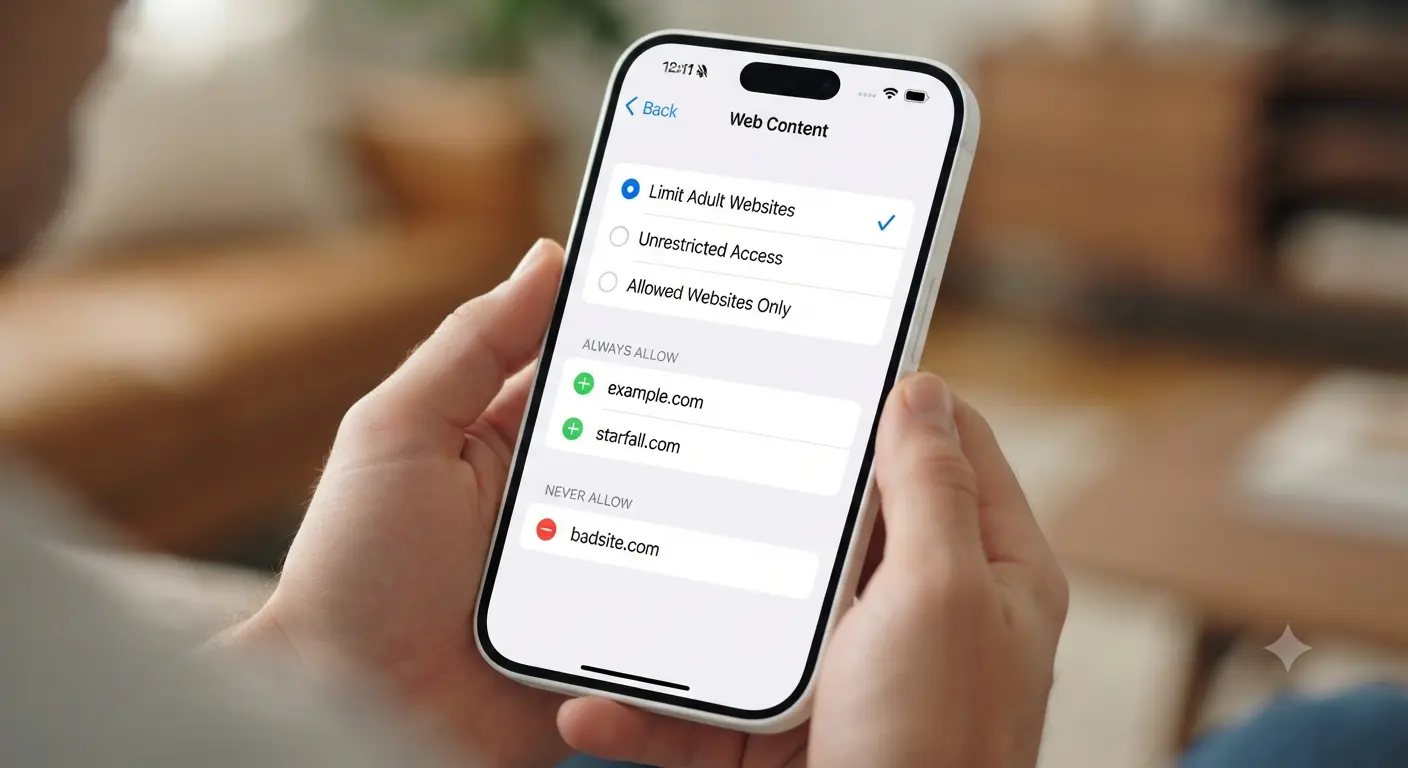
Select Limit Adult Websites
Usually, there are three options for website access:
Unrestricted Access – full website access.
Limit Adult Websites – automatically blocks recognised adult websites.
Only Approved Websites – only enables access to those sites that you approve.
By choosing Limit Adult Websites, the built-in filter attempts to limit sites it identifies as adult. It is a practical starting point when you want general browsing to remain available, but it is not a guarantee that every explicit site or in-app route will be blocked. For another overview of options, see this related BlockerX guide to adult website restrictions on iPhone.
Generally, Limit Adult Websites is the best solution for most people wishing to block pornographic websites, but still allow free internet access.

How to Block Individual Adult Websites
Apple also lets you add specific URLs to the Never Allow list. This can help when a site remains accessible after enabling adult-site filtering.
Adding sites to ‘Never Allow’
- Select Settings and then Screen Time.
- Choose Content & Privacy Restrictions.
- Navigate to App Store, Media, Web & Games and then Web Content.
- Select Limit Adult Websites.
- Scroll to the Never Allow section.
- Tap Add Website.
- Input the address for the website you wish to block.
- Continue doing this for further sites.
Sites that continually result in you viewing inappropriate matter can therefore be added to your blacklist, even if they are not recognised as adult websites.
Ideally, block a website’s main domain name, rather than just one page. Websites can update their architecture so merely blocking one page may not successfully stop access to other pages on that site.
Limit Adult Websites or Only Approved Websites?
If Apple’s default screening system is not sufficiently robust for you then an ‘Only Approved Websites’ function is also available.
| Setting | What it does | May suit |
|---|---|---|
| Limit Adult Websites | Attempts to identify and limit recognised adult websites; general browsing remains available. | People who want broad web access with an adult-content filter. |
| Only Approved Websites | Restricts browsing to websites you approve. | Children, managed environments, or people choosing a more restrictive setup. |
| Unrestricted Access | Does not apply Screen Time web-content filtering. | People who do not want this web filter. |
In which situations is Only Approved Websites useful?
If you wish to implement highly regulated conditions, Only Approved Websites can often produce more efficient outcomes than adult website screening alone.
Rather than endeavouring to block all adult sites, you can solely permit access to those websites that are truly necessary for example:
- Wikipedia
- Educational sites
- Work sites
- News sites
- Banking sites
- Plus other reputable sites.
Whilst this is a viable option, added effort is generally required as you may need to add extra appropriate sites as you come across them.
An ‘Only Approved Websites’ mechanism can further assist individuals in implementing rigorous digital regulations as it may further limit their ability to view unsuitable material.
How to Prevent Overrides of Website Filtering
Establishing a filtering mechanism is an important stage but, if you can override it in a few seconds, its effectiveness may be limited.
Implement a Screen Time passcode
- Ensure that the passcode for Screen Time is different to that which is used to unlock your iPhone.
On versions that use the classic Screen Time menus, go to:
Settings > Screen Time > Content & Privacy Restrictions > App Store, Media, Web & Games > Web Content
Settings > Screen Time > Lock Screen Time Settings/ Use Screen Time Passcode (exact wording may differ).
Follow on-screen guidance to establish your Screen Time passcode.
Having two different passcodes introduces an additional level of difficulty in overriding the filtering system. For further responsibility, a third party may also be involved in managing the Screen Time passcode – although this should only be done if you are happy for them to do so and have an effective strategy in place to recover the passcode where necessary.
- Never select an easy-to-guess passcode (for example, your date of birth or 1234) nor should this be the same as your iPhone’s unlock passcode.
Prevent alterations to key settings
Analyse the Allow Changes section in the Content & Privacy Restrictions menu.
If available, prevent amendments to settings which could undermine your filtering procedures for instance, those relating to account details and/or other pertinent areas.
Although it is not aimed at preventing access to crucial functionality, this makes it more challenging to spontaneously alter settings.
Can Screen Time Filter Adult Content on Non-Safari Browsers?
People often ask whether Screen Time filtering applies only to Safari. Apple’s support documentation describes filtering for Safari and supported browser apps; coverage and controls can vary by software version and the route used to access content.
Apple provides web-content filtering across Safari and supported browser apps, but what is filtered can depend on the browser, app, iOS version, and how a service displays content. Do not assume every browser or in-app feed behaves identically. Check Apple’s current web-content filtering guidance, then test the apps and browsers in your own setup.
As well as Safari, browsers such as Chrome and Firefox can also be downloaded. Consequently, it cannot always be assumed that all avenues for accessing online information will be equally impeded.
To optimise your filtering, therefore:
- Ensure that Screen Time website screening remains active.
Investigate which browsers have been downloaded onto your device.
- Un-install browsers that are not essential.
- If desired, also implement controls to prevent re-installation of Other Browsers.
- Finally, test your filtering within the apps that you use.
Clearly understanding how you are accessing the internet can further enhance website screening.
How to Further Enhance Your iPhone Porn Blocker
Although Screen Time is a useful filtering tool, additional boundaries can add friction. For another tool to compare, review BlockerX for iPhone, including its current features and terms.
1. Impose controls on app downloads and deletion
If you frequently download new browsers or apps to get around a filter, review Screen Time’s app installation and deletion restrictions. For a child’s device, Apple documents these controls in its guide to blocking apps, downloads, websites, and purchases. Menu names can vary by iOS version.
Such controls can thus avoid the pattern of un-installing your filtering, downloading a new browser and then resuming access to unsuitable material.
2. Set limits for apps that lead to unwanted browsing
Whilst some people do not directly browse to inappropriate websites, they often initiate their online activity via social media, discussion boards, communication and/or video apps.
App Limits can therefore be implemented to impede use of apps that frequently cause you to view unsuitable material.
To add an App Limit, open Settings > Screen Time > App Limits, choose the apps or categories to manage, then set a daily limit. Options may vary across iOS releases.
- Open Settings.
- Select Screen Time.
- Choose App Limits.
- Add a limit.
Specify which apps or app types should be controlled and decide on a daily limit for these.
3. Establish a Downtime period
Downtime can be a good way to limit evening browsing. People often struggle to adhere to their plans at this time due to factors such as fatigue, pastimes and/or a lack of structure.
On versions that use the classic Screen Time menus, go to:
Settings > Screen Time > Content & Privacy Restrictions > App Store, Media, Web & Games > Web Content
Settings > Screen Time > Downtime.
Define suitable times for Downtime. Carefully define permitted apps and contacts to ensure that essential facilities can still be accessed.
4. Delete bookmarks, icons, and links
Remove bookmarks, icons and/or links which frequently direct you to sites that you wish to avoid.
Diminishing ease-of-access can help to disrupt habitual behaviour.
5. Physically distance yourself from your iPhone
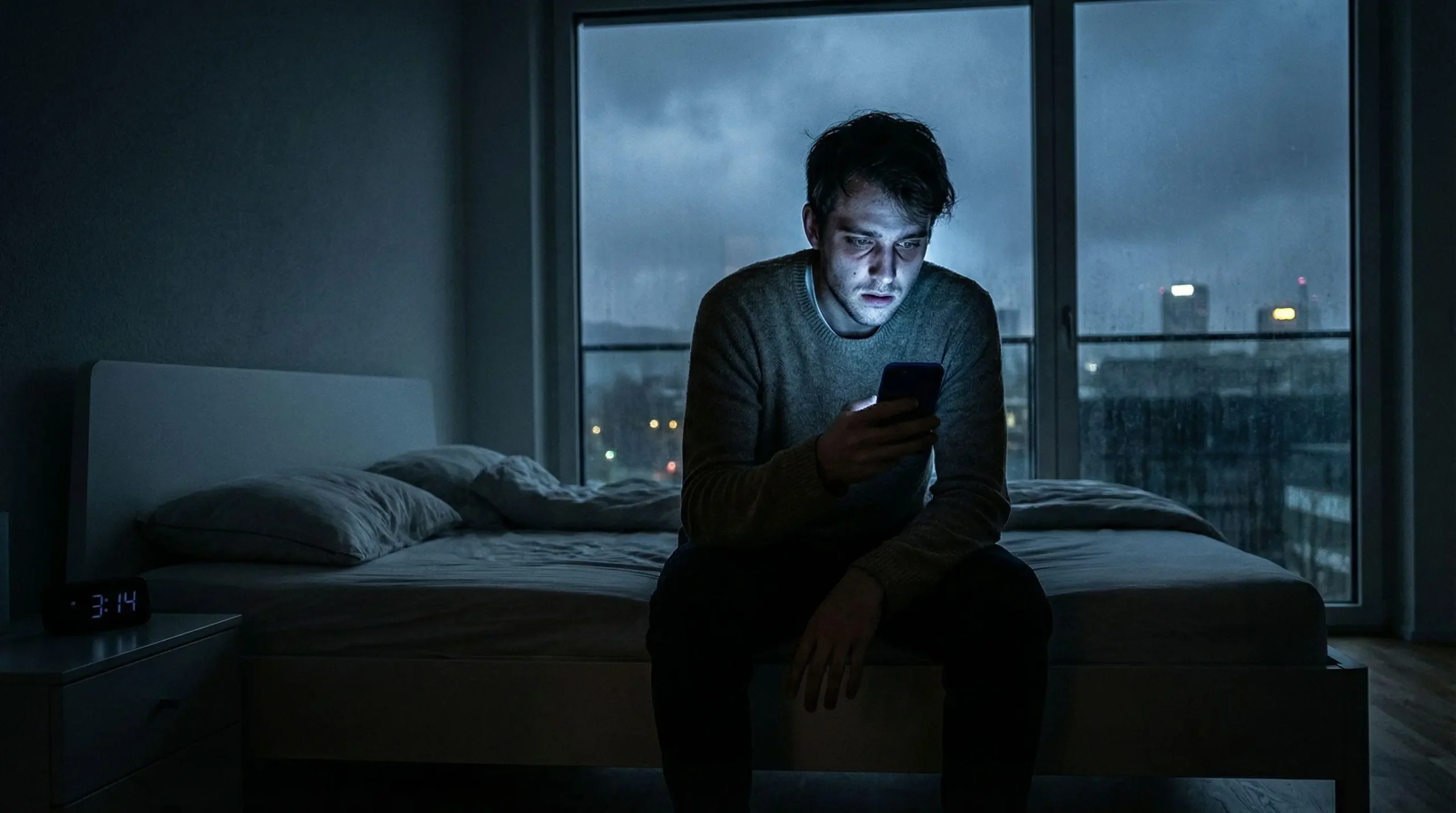
If evening browsing is problematic, then taking your iPhone out of your bedroom for charging can be a straightforward yet effective method of enforcing a boundary.
Your phone can also be physically separated from you during work, study, sport and leisure times.
Generally speaking, the more stages that exist between a stimulus and behaviour, the greater your capacity to consciously decide upon an action.
Why Website Screening May Not Sufficiently Address Behaviour
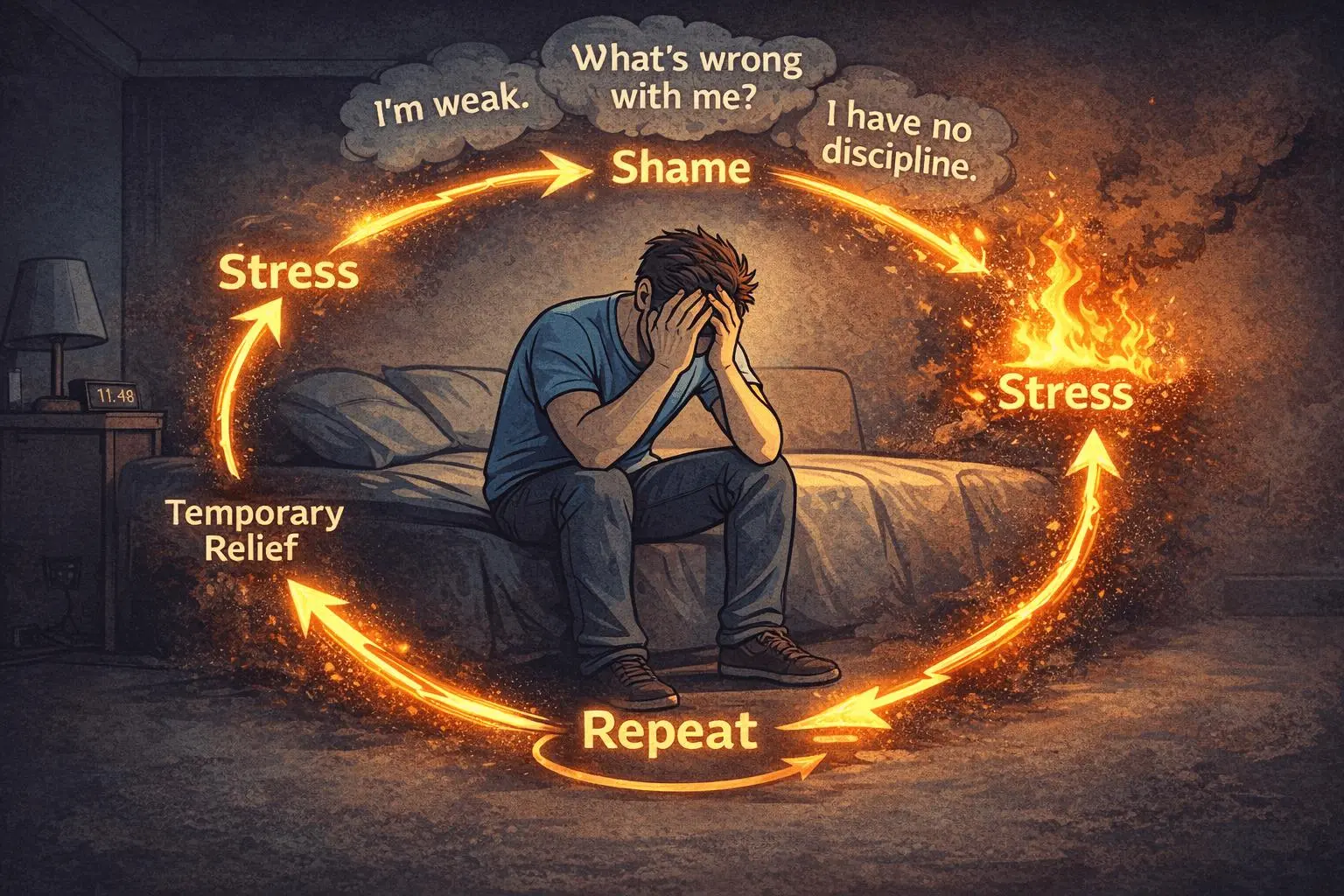
Website filtering can reduce access, but it does not necessarily change the habits or situations behind browsing. For some people, urges may be connected with stress, isolation, boredom, anxiety, procrastination, or routines.
For many, the desire to browse to adult websites is associated with factors such as stress, isolation, idleness, anxiety, procrastination and/or habitual behaviours.
Should you solely depend on screening for controlling your browsing, you may ultimately seek to overcome it when the aforementioned factors recur.
Effectively managing behaviour is often best achieved by integrating technological and behavioural strategies. This may involve:
- Recognising situations that prompt you to browse to inappropriate websites.
- Establishing a structured timetable to diminish free and/or unstructured time.
- Enhancing sleep and curtailing night-time phone usage.
- Seeking alternative methods for handling stress.
- Increasing participation in non-digital pursuits.
- And/or obtaining assistance if you feel that you are struggling to regulate your behaviour.
Whilst a blocker can be a valuable tool, it should ideally complement rather than solely act as a barrier to behaviour modification.
Frequently Asked Questions
Is there a way of permanently blocking pornographic websites on my iPhone?
Screen Time can make access more difficult, especially when a restrictive website setting is paired with a passcode. No single setting can guarantee permanent blocking across every app, website, browser, and network.
Will Limit Adult Websites block all pornography?
No. Although Apple’s screening can block recognised adult websites, not all such sites will always be recognised. Manually adding sites to the Never Allow section can further improve screening. An Only Approved Websites mechanism also provides a more stringent filtering option.
Can I block adult websites without downloading an app?
Yes. Apple’s Screen Time facilitates website screening without necessitating the downloading of an external app.
Which in-device iPhone website screening is most effective?
Only Approved Websites is the most restrictive built-in website setting because it limits access to the sites you approve. It requires ongoing maintenance and still should not be treated as a universal filter for every app or network.
Can I block adult websites on my child’s iPhone?
Yes. Parents or guardians can manage a child’s restrictions through Family Sharing. The precise route depends on the iOS version and whether the new parental controls are enabled; see Apple’s current guide to parental controls.
In Summary
Knowing how to block adult websites on an iPhone is a beneficial first step in promoting secure and positive digital behaviour.
Apple’s Screen Time provides various controls for managing online behaviour including Limit Adult Websites, manual blacklisting, Only Approved Websites, App Limits, Downtime and settings controls.
Initially, Limit Adult Websites is a good filtering mechanism. Further, Only Approved Websites can be employed alongside a Screen Time passcode and controls on downloading Other Browsers to further regulate online behaviour.
However, in addition to filtering, it is crucial to also recognise behaviour prompts, consciously manage your phone usage and participate in activities that maintain your connection to non-digital life in order to foster positive digital behaviour.
Creating an optimal digital environment involves not only making it more difficult to access unsuitable material, but also facilitating realisation of desired decisions.