How to Block Facebook on Chrome: A Step-by-Step Guide
Table of Contents
Introduction
As an avid Facebook user, I understand how easy it is to fall down the rabbit hole of endless scrolling.
But there’s more to it than just losing track of time. What about the potential risks, especially for our kids? Despite our best efforts, they can stumble upon unwanted content or interactions, even on seemingly innocent platforms like Facebook. And while we might think we’ve restricted access, they could still find their way through Google Chrome browser.
So, what’s the solution? Can we block Facebook? The answer is yes. And how do we do that? How to Block Facebook on Chrome? Well, here is a step-by-step guide to help you reclaim your productivity and safeguard your loved ones from unnecessary exposure. Let’s dive in and take control of our online experiences.
What is the Need to Block Facebook on Chrome?
Today, social media platforms like Facebook have become ubiquitous. While they were supposed to be greater boons of technology, providing us with space for vast information and communication, they are reduced to nothing but hurdles with some detrimental effects.
Excessive use can, in fact, lead to severe negative effects on our mental health, productivity, and personal relationships.
Here’s why blocking Facebook on Chrome may be necessary:
- Harmful to Mental Health: According to a number of studies it is found that excessive social media use leads to depression, low self-esteem, and even thoughts of suicide. The fear of missing out and the pressure to maintain an online presence can exacerbate these issues, negatively impacting overall well-being.
- Decreases Productivity: Well, as you may know from first-hand experience, it is extremely easy to get addicted to Facebook. Before you even know it, constant scrolling, checking notifications, and keeping up with the platform begins to occupy most of your day. Productivity and keeping up with everyday tasks take a back seat.
- Privacy and Safety Concerns: Now, this is the biggest, especially when it comes to the safety of our children or younger adults. Today, with easy accessibility and no actual barrier, authentic and fake, most social platforms have become a breeding ground for cyberbullying, fraud, and identity theft. Children and teenagers are particularly vulnerable, with the potential to encounter unwanted websites, inappropriate explicit content, or interact with strangers, posing safety risks.
How to Block Facebook on Chrome: A Step-by-Step Guide
So, have you decided it’s time to take control of your or your loved ones’ browsing habits and cut down on Facebook time? Smart move. But how to block Facebook on Chrome? Well, blocking Facebook on Chrome is easier than you might think, thanks to in-build options and handy tools like BlockerX.
That said, here’s how to block Facebook on Chrome browser, using some simple yet effective methods:
Method 1: How to block Facebook website on Chrome using the extension.
Nowadays, chrome extensions play an essential role in enhancing the functionality of Chrome. They enable you to perform tasks effortlessly, whether it’s managing multiple tabs, accessing different search engines, or blocking social media platforms like Facebook directly within the Chrome browser.
Now, choosing the right block site extension is essential. Fortunately, great options, such as BlockerX, Block Site, and more, are available.
However, when selecting an extension or blocker app, it is important to keep a few things in mind.
For one, you need an option that is easy to use, provides effective efficiency, and has an interactive interface. It should work seamlessly on your Android or iOS mobile and function as an all-around regulation for a better and safer online experience. Fitting all these bills, BlockerX is a handy and practical answer- how to block Facebook website on Chrome using the block site extension.
That said, here is a step-by-step guide to blocking Facebook with the help of a dependable site blocker:
Step 1: Search for the BlockerX Extension
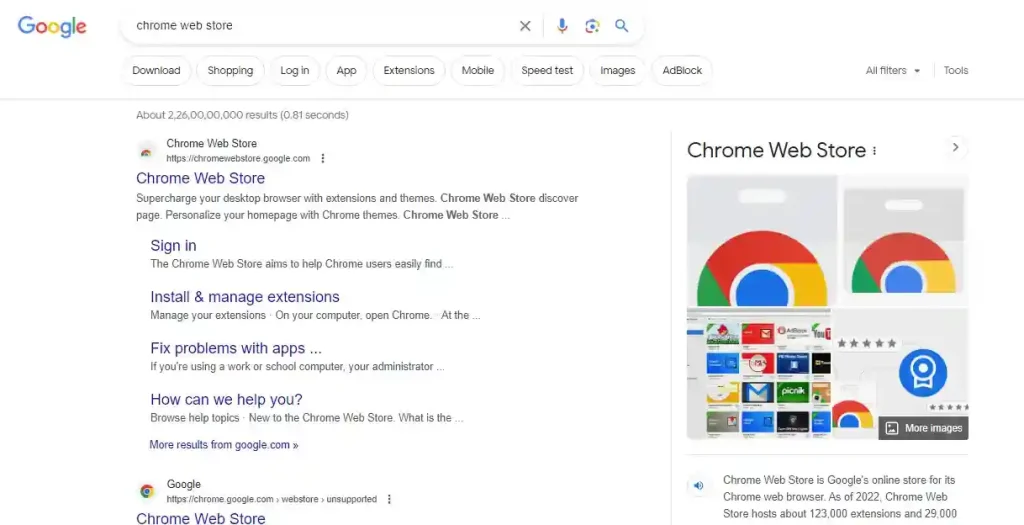
To begin with, open your Chrome browser and search Chrome Web Store. Select the first result. In the search bar at the top left corner of the screen, type “BlockerX” and hit enter. Next, select the BlockerX extension from the search results and click on it to open the extension page.
You can also simply launch the blockerx Chrome web store.
Step 2: Add BlockerX to Chrome
Once the page opens, Click on the “Add to Chrome” icon at the top right of the page. Confirm the installation by selecting “Add extension” in the pop-up window. Your computer will install the Chrome extension.
Step 3: Setup the Chrome extension:
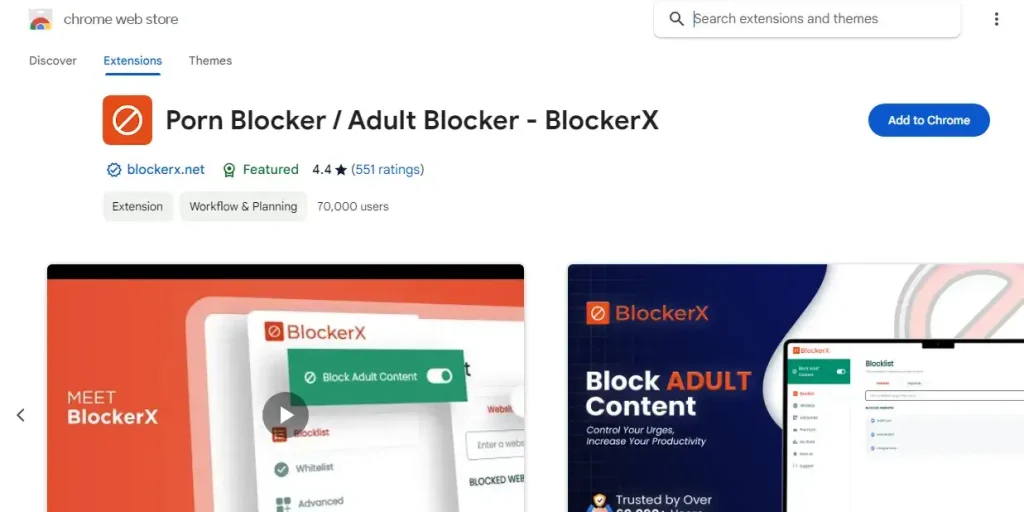
Wait for the extension to install on your browser. Once installed, you will see the BlockerX icon in the Chrome toolbar. Next, follow the user-friendly on-screen instructions to complete the setup process for BlockerX.
Step 4: Access Blocklist and Block Facebook
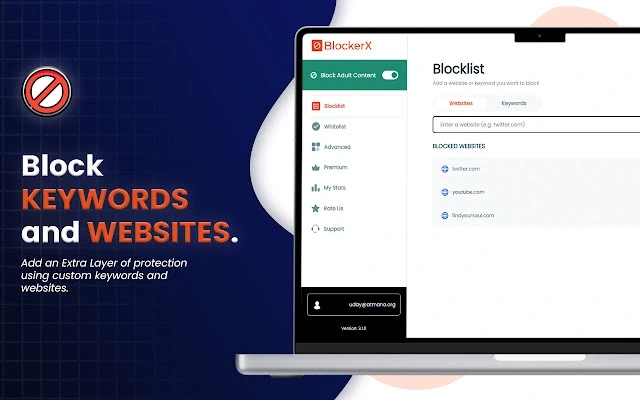
Head to the “Blocklist” feature with the extension in place. In the blocklist, paste the Facebook URL and press Enter. This will block access to Facebook on your Chrome browser.
That’s it! You have effectively set up the BlockerX extension to block Facebook on the Google Chrome browser.
Method 2: How to block Facebook on Chrome Android
If you are wondering how to block Facebook on Android Chrome, I recommend using a reliable website blocker. Fortunately, BlockerX provides a handy option.
Similar to its Chrome extension version, BlockerX for an Android device helps to block social media platforms on Chrome effortlessly. This way, you will be able to block unwanted websites as well as the Facebook app across devices and browsers.
Here is how to block Facebook on Chrome Android:
Step 1: Download the Social Media Blocker
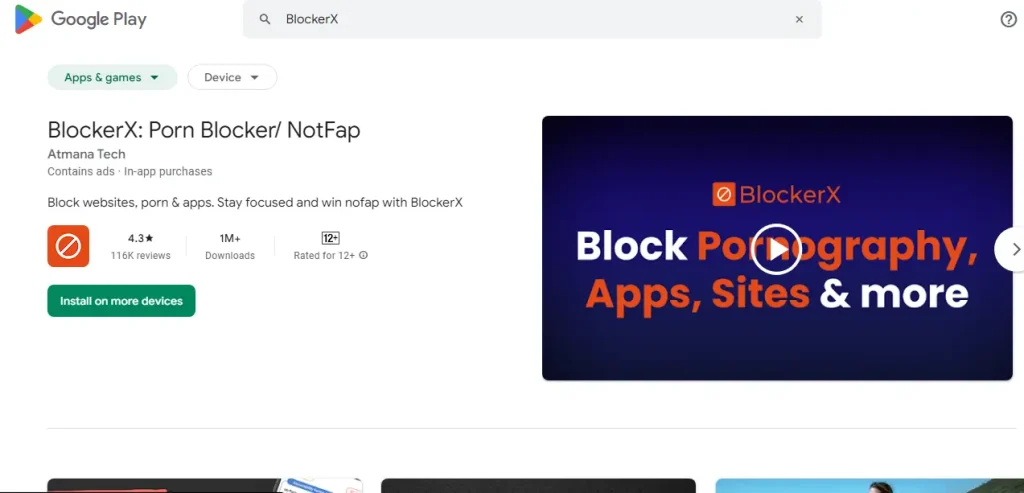
First, download BlockerX from the Google Play Store. Once installed, launch the app to get started.
Step 2: Sign Up or Log In
Next, sign up if you are a new user. If you are already a user, simply log in with your credentials.
Step 3: Access Blocklist.
Within the BlockerX app, find the “Blocklist” or “Blocked Apps” section. Tap on it to proceed. This app feature provides you with the handy option to block sites you want to keep out.
Step 4: Add Facebook to the Blocklist
Now, it’s time to add Facebook to your block list. Simply type in “www.facebook.com,” press Enter, and block access to Facebook.
Step 5: Customize Blocking Settings
What’s more, BlockerX also offers some nifty customization options. You can set specific time intervals for social media blocking, establish schedules, or opt for complete and total blocking. Basically, you can customize your blocking settings according to your preferences.
Step 6: Save Your Settings
Once you have added Facebook to the blocklist and customized settings to your liking, ensure that you save your changes.
Method 3: How to Block Facebook on Chrome (Apple devices).
Moving on, the next method on the list of how to block Facebook on the Chrome browser is using the Screen Time Method.
Now, screen time is basically a built-in feature on iOS devices. It allows you to control access to apps and block websites, including Facebook. Moreover, screen time is handy for parents who want parental controls to monitor their children’s internet usage without needing third-party software.
Here’s how to Block Facebook on Chrome Using Screen Time:
- Step 1: To begin with, navigate to the System Preferences. You can do this by clicking on the Apple logo in the top-left corner of your screen and selecting System Preferences.
- Step 2: Next, under System Preferences, locate and select ‘Screen Time.’
- Step 3: In the Screen Time settings, navigate to the ‘Content & Privacy’ section on the left sidebar. Ensure that Content & Privacy Restrictions are turned on. If not, click on ‘Turn on…’ in the upper right corner. Following that, under the ‘Web Content’ section, select ‘Limit Adult Websites.’
- Step 4: Select the Customize button within the ‘Limit Adult Websites’ option. Then, add the Facebook URL to the list of restricted sites. Finally, to prevent unauthorized changes, select the ‘OK’ button.
And just like that, Facebook is now blocked on Chrome. Moreover, as I mentioned earlier, this method can be applied on all Apple devices, including Mac, iPad, and iPhones, providing a seamless way to control Facebook access across all your devices.
And though it’s not as effective parental control as BlockerX, using Screen Time is a straightforward and handy way to block Facebook on Chrome and have a more controlled browsing experience for yourself or your family members.
Method 4: How to block Facebook website on Chrome using your router settings.

If you are looking forward to extending Facebook restrictions across all devices connected to your home Wi-Fi network, using your router’s settings is an effective approach. Most modern routers offer built-in parental controls or website filtering features, allowing you to block sites like Facebook with ease.
Here is what you need to do:
Step 1: Start by accessing your router settings. You can do this by typing your router’s IP (e.g., http://192.168.0.1 or https://myrouter.local ) address into a web browser on any connected device. Typically, this address is found on a sticker attached to your router or in the router’s manual.
It resembles something like “192.168.50.1” or “192.168.1.254”.
Step 2: Log in to your router using the provided credentials. If you haven’t changed them, the default username and password are often “admin” for both. However, in case you are unsure, consult your router’s manual or online resources for guidance.
Step 3: Once logged in, navigate to the Parental Control or Website Blocking section. The location of these settings may vary depending on your router’s make and model but can usually be found under the “settings” or “advanced settings” menu.
Step 4: Next, look for options related to blocking specific websites, such as “Parental Controls,” “Block site,” “Access Restrictions,” “Content filtering,” or “Website Filtering.” Following that, enter “www.facebook.com” and any related domains into the designated field. This ensures that no devices connected to your network can access Facebook.
Step 5: Finally, save your changes and apply them. Some routers may require a restart for the settings to take effect. Once complete, any attempts to access Facebook will be blocked for all devices connected to your home Wi-Fi network.
Conclusion
Well, I hope you got your answer on how to block Facebook on Chrome. These effective ways will help you block Facebook as well as certain websites with inappropriate content, allowing you to experience a safe and productive online space.
FAQs
Q. Can you block websites in incognito mode?
Yes, you can block any specific website using Chrome Incognito mode.
Q. Do Chrome extensions allow you to add Keywords to the block list?
Yes, in addition to inappropriate websites, chrome browser extensions like BlockerX allow you to add Keywords to the block list as well.
Q. Can you block the Facebook app?
With its social media blocker, BlockerX allows you to add the URLs of the social media platforms you want to block or select the respective social media apps from the provided list. You can also customize your blocking settings.